Send logs to Stelo Support
With a support case, send the logs of the part that has the problem: the Replicator Service (from the Data Replicator Manager) or the Capture Agents (from the SQDR Control Center). Both can upload the logs to Stelo or give you a file to send another way. When you're not sure, send both.
Replicator Service
When you contact Stelo Support, click Log Files on the Service Logs tab of the Monitoring page, then:
- Download support logs downloads the support bundle for you to attach to your request; or
- Send Logs to Stelo uploads it: Default to Stelo, or Upload to FTP to another FTP server. The Replicator Service does the upload, so its host must reach the FTP server. When it's done, a message shows the log's URL: include it in your request.
The support bundle holds the audit journal, the service log files, the crash and error logs, the debug log if it's
on, and ControlDbHistory.log: the control database's level and the upgrades applied to it (see
Control database upgrades). It doesn't hold crash dumps; if Support asks
for one, copy its location from Log Files and fetch it from the service host.
For a problem in one run, also copy that run's messages from its replication events, and consider tracing the next run first.
What to include in your request
Stelo Support resolves a problem fastest when the request already has:
- Versions: the Windows version of the Stelo VM; the control database's type and version (Db2 for LUW or SQL Server); the SQDR version (SQDR Version in Service Settings); the versions of StarSQL and the other ODBC drivers used (the Drivers tab of the ODBC Data Source Administrator); and the versions of the source and destination databases.
- The symptom: is it about installing or licensing? Does it fail with an error message? Does a system, the service or a group hang or stop responding? Is data wrong or missing at the destination? Did it start after an upgrade of the source, the destination or SQDR?
- The exact error text: for an error while creating, changing or saving a subscription, the steps that lead to it and the message; for a problem in a run, the messages of its replication events.
A dump of a hung service
When the service or a subscription hangs (no crash, so no crash dump), Stelo Support may ask for a dump of the running Replicator Service:
- Start Task Manager (
taskmgr) on the Stelo VM, as an administrator. - On the Details tab, right-click
sqdrsvc.exeand choose Create memory dump file (on older Windows versions, Create dump file on the Processes tab, with Show processes from all users). - A message gives the location of the
sqdrsvc.dmpfile (in the Temp folder of your user, for exampleC:\Users\<you>\AppData\Local\Temp). Compress it into a ZIP file and send it to Stelo Support.
An ODBC trace
For problems with database access, Stelo Support may ask for an ODBC trace: a record of the calls the Replicator Service makes to an ODBC driver. Turn it on in the ODBC Data Source Administrator (64-bit), on the Tracing tab, reproduce the problem, then turn it off and send the trace file. See How to Generate an ODBC Trace with the ODBC Data Source Administrator. For problems with StarSQL (Db2 sources and destinations), Support may ask for a DRDA trace instead; see How to Generate a DRDA Trace with the StarSQL DRDA Trace Recorder.
Crash dumps
When the Replicator Service crashes (an unhandled exception), it writes a dump file to
C:\Users\Public\Documents\StarQuest\SQDR\CrashDumps, named sqdrsvc-<PID>-<TID>-<YYYYMMDD>-<HHMMSS>.dmp (process
ID, thread ID, date and time of the crash). Stelo Support uses it to find the cause.
To write a dump, the account the service runs as needs the Debug programs user right. The default account, Local System, has it. If the service runs as another account (see The Windows service):
- Open Local Security Policy (Windows Administrative Tools) and go to Local Policies › User Rights Assignment.
- Open Debug programs and add the service's account (or a group it belongs to).
- Restart the Replicator Service so that the new right takes effect.
After a crash, find the newest .dmp file (Log Files lists it; copy its location there), compress it into a ZIP
file and attach it to your support request.
Capture Agents
Stelo Support usually needs the logs and control tables of your Capture Agents. Send Logs collects them into one ZIP file and uploads it to Stelo Support, or gives it to you to download and send another way.
Send Logs on the server's Agents tab collects the agents you ticked, or the whole server when none is ticked.
How it works
The collection runs on the Stelo VM. For each agent in scope, the SQDR Control Center exports the agent's
control tables, zips its folders into part ZIP files, then packs the parts and a README.txt into one bundle. The
dialog shows each step; if you close it, the collection continues and the result opens again when it's done.
- Send to Stelo Support uploads the bundle to the Stelo support site by FTP (see Ports), checks that the server received all of it when the server reports file sizes, and notifies Stelo Support by email, with the case number, your email and note.
- Download a ZIP file keeps the bundle on the Stelo VM for you to download. Download it right away: a bundle left there is removed after a day.
Each user can run one collection at a time; the server runs collections one after another. A finished result stays available for an hour, so reopening the dialog shows it.
An agent comes with its family: a parent agent with its child agents, a child agent with its parent. The parent runs the capture its children depend on, so neither tells the whole story alone.
What's collected
The bundle is named [case_]host_scope_yyyyMMdd-HHmmss.zip: the case number (if you entered one),
the Stelo VM's host name, the scope (all-agents, the agent's name, or n-agents) and the time. Inside:
| File | What it holds |
|---|---|
README.txt |
When and where the logs were collected (with the time zone), the Control Center version, who collected them, the scope, the case number, your email and note, the list of parts, and anything that couldn't be collected. |
agent-agent.zip |
The agent's folder: its logs (capture_agentn.log, proceduren.log), its settings, and its control tables exported as CSV: sq_statistics, sq_properties, sq_subscribers, sq_subscriptions, sq_readers, sq_targets, sq_transactions, sq_status, and the streaming-destination tables sq_requests, sq_tablestats, sq_applywork and sq_applylog. |
agent-exports.zip |
Table exports in the exports folder, when there are any. |
agent-launcher.zip |
Whole server: the Launch Agent's folder, with its logs, settings and the sq_agents and sq_history tables. |
agent-install.zip |
Whole server: the installation logs and settings. |
agent-server-logs.zip |
Whole server: the SQDR Control Center's Jetty wrapper log (the live file and the two newest rolled files, up to 10 MB each), the last 25 MB of the live db2diag.log, and the Db2 db2optstats event logs. |
Once per collection, the Db2 diagnostic and configuration information of the staging database's instance
(db2diag.log, db2cfg.log) is added to the folder of the first Capture Agent whose staging database is in Db2. For
a remote agent, its host collects the logs and each of its ZIP files becomes a part. If an agent's staging database
can't be reached, its log files are still collected, and the result says the tables weren't exported.
Steps
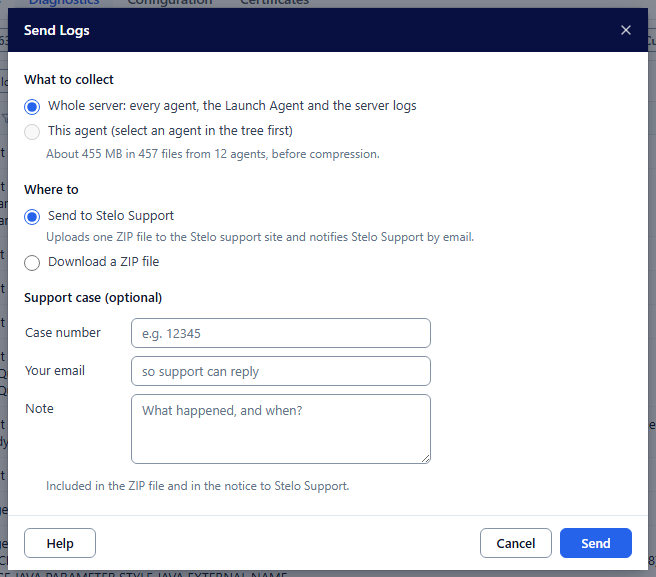
- To collect one agent only (a smaller, quicker bundle, with its parent or child agents), select it in the tree first, or tick agents on the server's Agents tab.
- Choose Support › Send Logs to Stelo, then what to collect and where to. Download a ZIP file is for a server that can't reach the internet, or a policy that requires sending files another way.
- Enter your Case number (added to the file name, so the logs can be matched to your case), your email and a note on what happened, and when, and click Send (or Create ZIP).
- If the result says Stelo Support could not be notified by email, quote the file name in your support case.
Related
- Stelo Support Portal
- Logs: the Replicator Service's logs