Subscriptions
A subscription replicates one source table (or view, alias or synonym) to one destination table. You create subscriptions with the Subscription Wizard; each setting can be changed later on the subscription's tabs (see Subscription properties). To run, copy, move, export or delete subscriptions, see Manage subscriptions.
Snapshot or incremental
Decide first: the type can't be changed after the subscription is saved.
| Snapshot | Incremental | |
|---|---|---|
| What a run does | Copies all the rows (or the rows that match the criteria) | Copies all the rows once (the baseline); after that, captured changes are applied |
| Needs | A source and a destination | A source configured for incremental replication (with a Capture Agent), and an incremental group |
| Group | Optional: one or more snapshot groups | Required: exactly one incremental group with the same source and destination |
| Objects | Tables, views, aliases and synonyms | Tables only |
| Schedule | Its own schedule, or its groups' schedules | The group's schedule |
Create subscriptions
Create incremental subscriptions from their group: they then replicate between the group's source and destination, and start with the options you set once on the group.
- Create the incremental group, if you haven't yet.
- In Groups, select the group, and on its Subscriptions tab click Insert Subscription.
- Go through the wizard (see the steps below) and click Save.
- The new subscriptions need a baseline, a first full copy, before changes are applied. If the group's Automatic Snapshot is on, the group runs it within a few minutes; otherwise see After you save.
To copy tables that don't need incremental replication, see Create snapshot subscriptions.
Create snapshot subscriptions
- In Sources, select the source, and on its Subscriptions tab click Insert.
- On the Source step, choose Snapshot.
- Go through the wizard. Started from a source, it also asks for a group and a schedule.
- Click Save, then run the subscriptions, or let their schedule or their group run them.
The Subscription Wizard, step by step
Step 1: Source
Choose the tables to replicate.
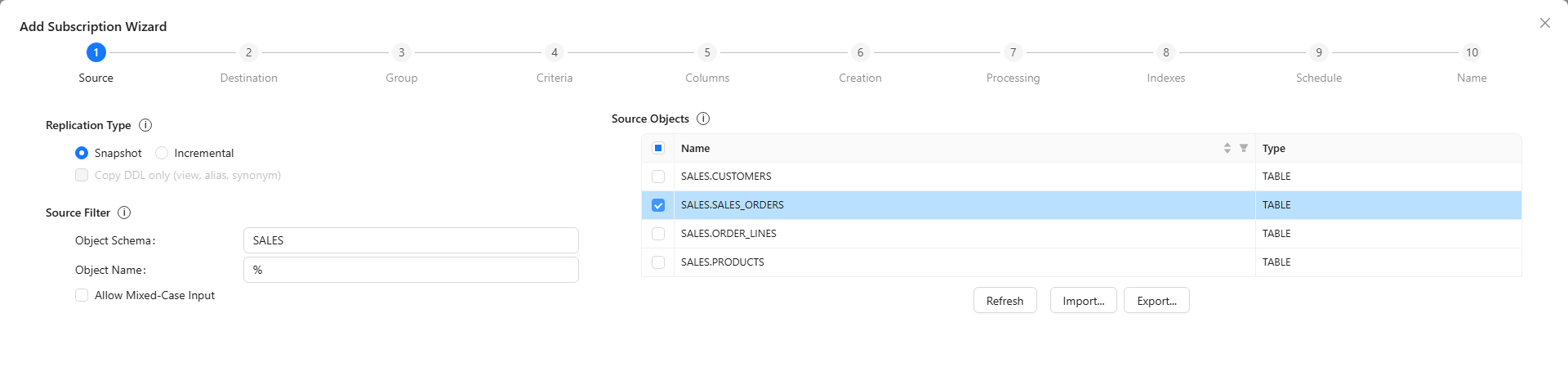
Filter by schema and name (% matches any characters) and click Refresh. Select one table, or several with
Shift or Ctrl to create one subscription per table (see Several tables at once). The filter starts
on the source's default schema, which you can set on the source (see Defaults).
| Option | When to use it |
|---|---|
| Allow Mixed-Case Input | The schema or table names are in mixed case. Otherwise what you type is converted to uppercase. |
| Copy DDL only (view, alias, synonym) | To create a view, alias or synonym at the destination, rather than copy its rows into a table. You write its CREATE statement on the Creation step. Snapshot only, and not from a source with a Capture Agent. |
| Select a Member to Replicate | Db2 for i multi-member files: the member to replicate, or *ALL for one subscription per member. |
| Import..., Export... | To create the same subscriptions on another server, or to retry the tables that failed: a list of tables, one per line. |
Changing your choice here later resets the steps after it.
Step 2: Destination
Name the destination table, and decide how it's created and loaded.
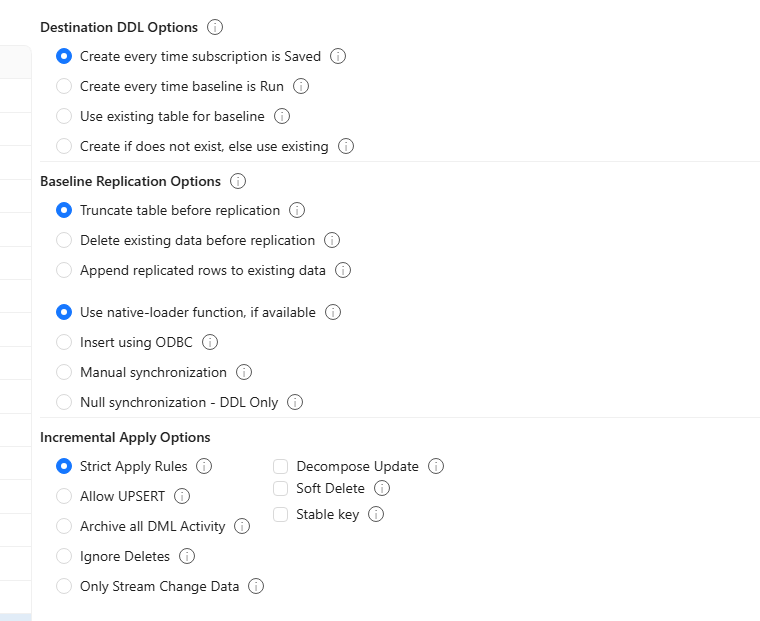
The destination table gets the source table's name, in the destination's default schema; change them under Destination Information. From a group, the options start on the group's Subscription Wizard Defaults: set them there once for all the group's tables.
| Option | When to change it |
|---|---|
| Destination DDL Options | By default, the table is created when you save, and an existing table with that name is dropped first. Choose to use an existing table when your DBA creates the destination tables, or to re-create the table at each run or baseline. See Destination DDL Options. |
| Baseline Replication Options | How existing rows are removed before a run or baseline (Truncate, Delete, or none to Append), and how rows are loaded. Keep the defaults unless the destination table holds other rows or the native loader can't be used. See Baseline Replication Options. |
| Incremental Apply Options | To keep a history of changes (Archive all DML Activity), mark deleted rows instead of deleting them (Soft Delete), or tolerate rows that are already there or missing, for example after a replay (Allow UPSERT). See Incremental apply options. |
| Stable key | Tick it only if the application never changes the table's key values. See Stable key. |
| Enter Derived Column(s)..., Import Mapping Script..., Mapping Options | To add computed columns, or to map source data types differently for this table. See Derived columns and Mapping Options. |
Changing the destination resets the columns and indexes.
Step 3: Columns
Check how the source columns map to destination columns.
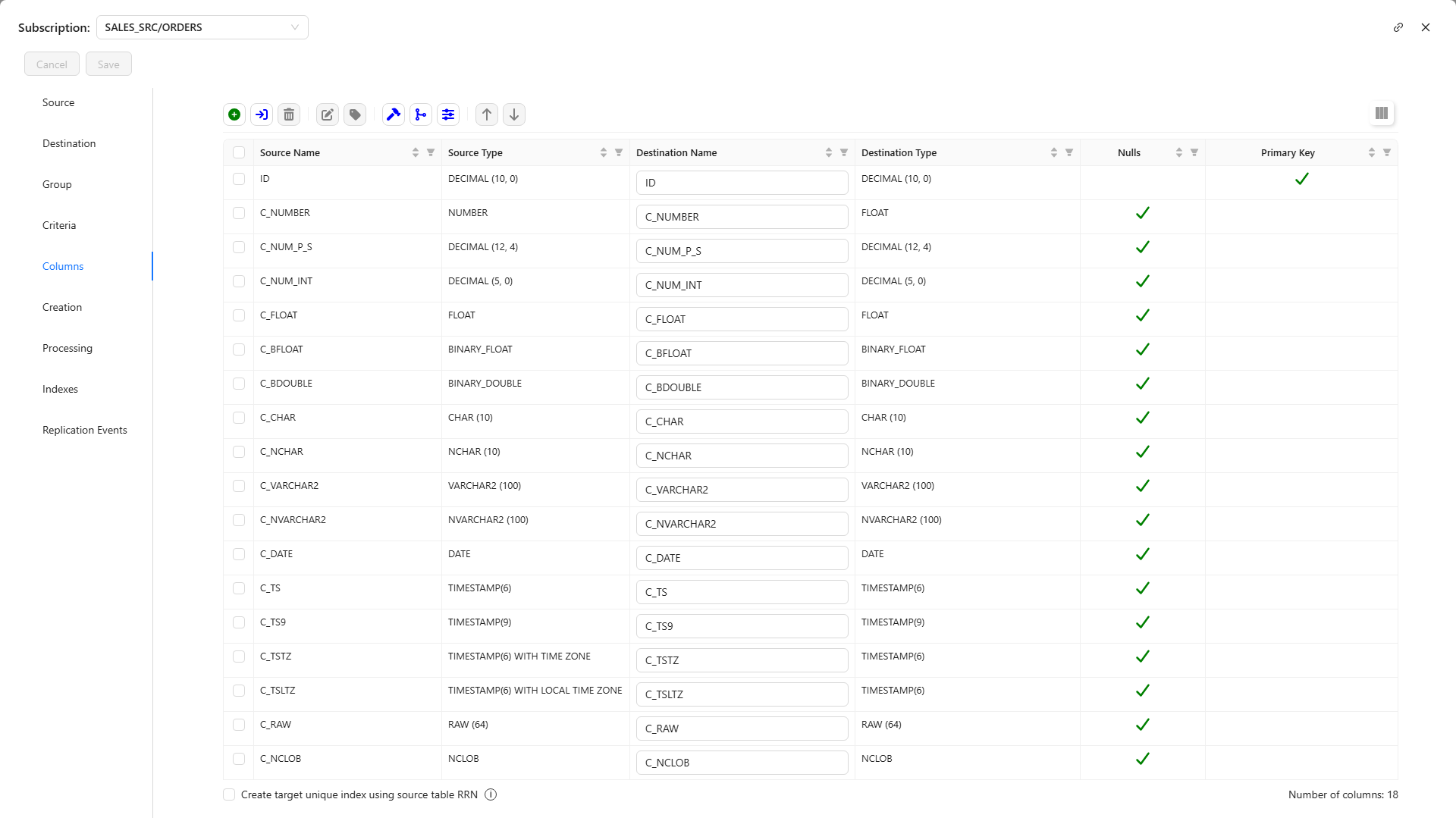
Each column gets a destination type from Data type mapping. Change a destination name or type with Modify Columns, drop the columns you don't need, or add derived columns. Rebuild Column List starts again from the source table, for example after the source table changed. For a table without a primary key or unique index, Force hidden column adds the source's row identifier as the replication key (see The RRN or ROWID column). See Columns.
Step 4: Criteria
Optional: replicate only some of the rows.
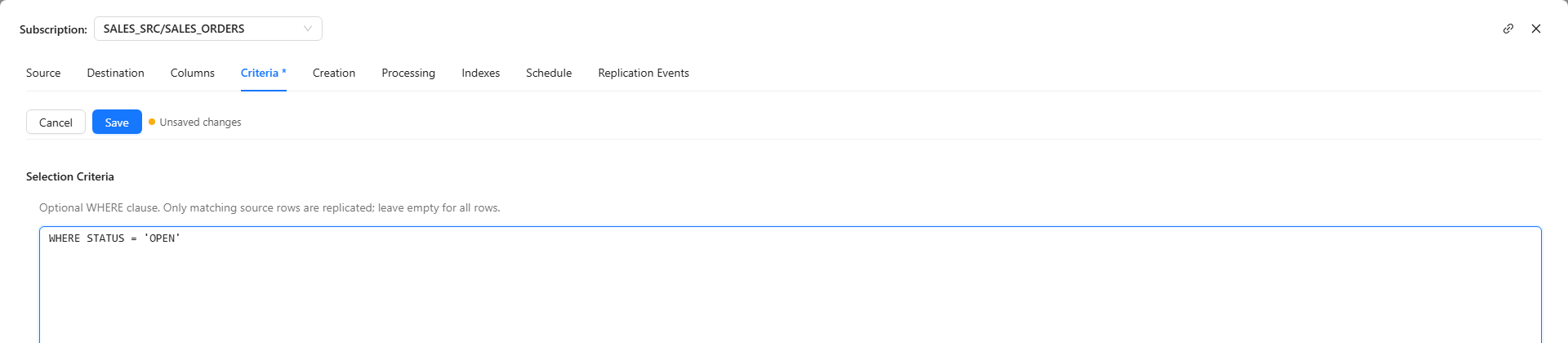
Enter a WHERE condition in the source database's SQL, for example WHERE REGION = 'WEST', and check it with
Verify Criteria. For an incremental subscription, it also filters the captured changes. For a very large table,
Parallel baseline (advanced) copies the baseline in slices, in parallel (see
Parallel baselines with slices).
Step 5: Creation
The CREATE statement for the destination table. If your DBA creates the destination tables, give them this
statement. With Copy DDL only, write the view, alias or synonym's statement here. See
Creation.
Step 6: Processing
Optional: SQL to run on the source or the destination before or after each run (for an incremental subscription, each baseline), for example to flag the source table while it's copied, or to refresh statistics at the destination.
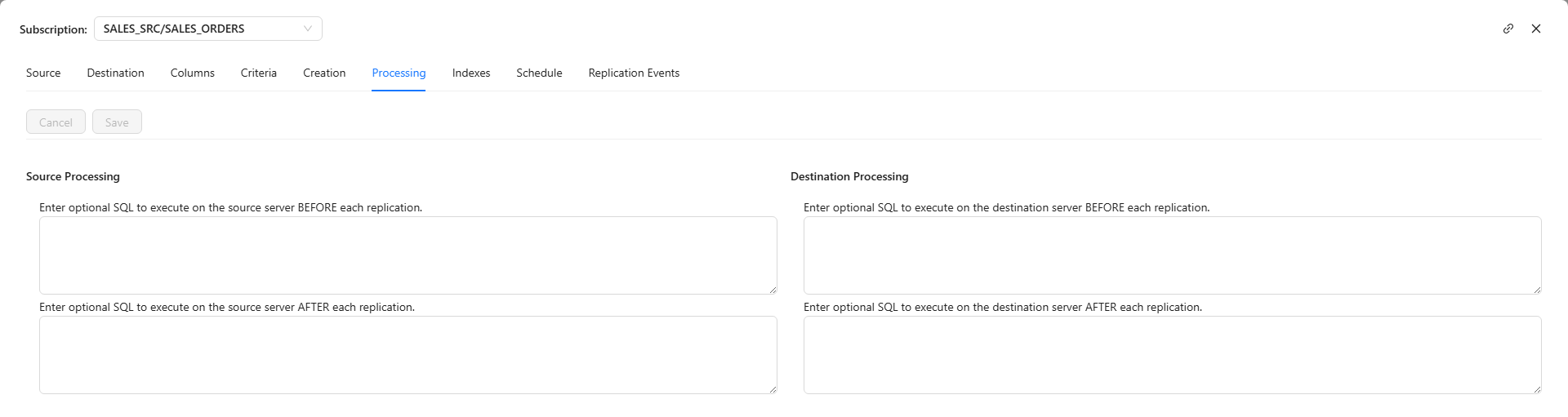
See Processing.
Step 7: Indexes
Choose which of the source table's indexes and keys to create at the destination.
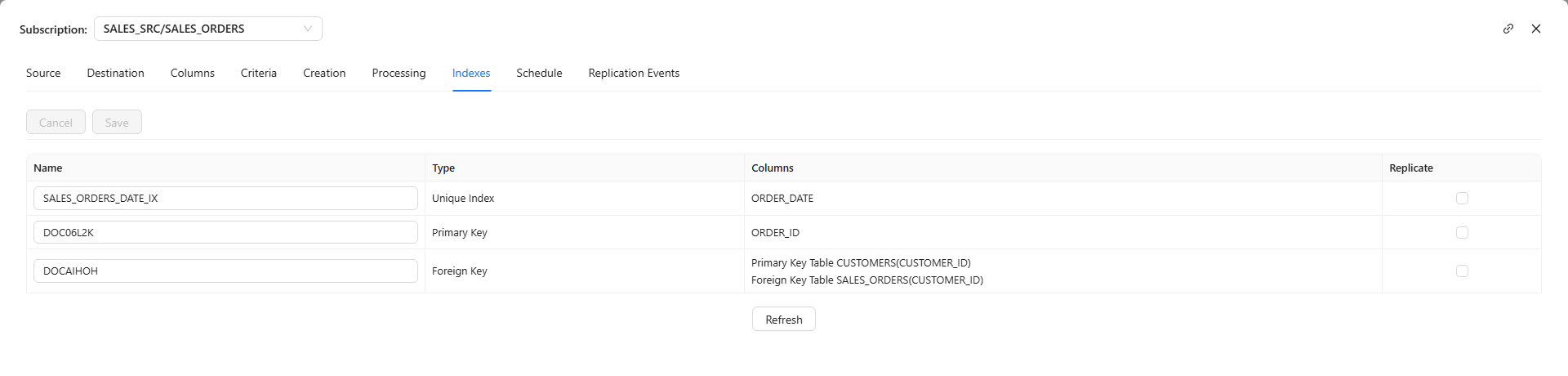
When the subscription runs in a group, the group's Indexes/Constraints settings decide instead. See Indexes.
Step 8: Name
Name the subscription: the name must be unique within the source.
Several tables at once
If you selected several tables on the Source step, the wizard goes from Destination straight to a Summary of the subscriptions it will create.
Summary
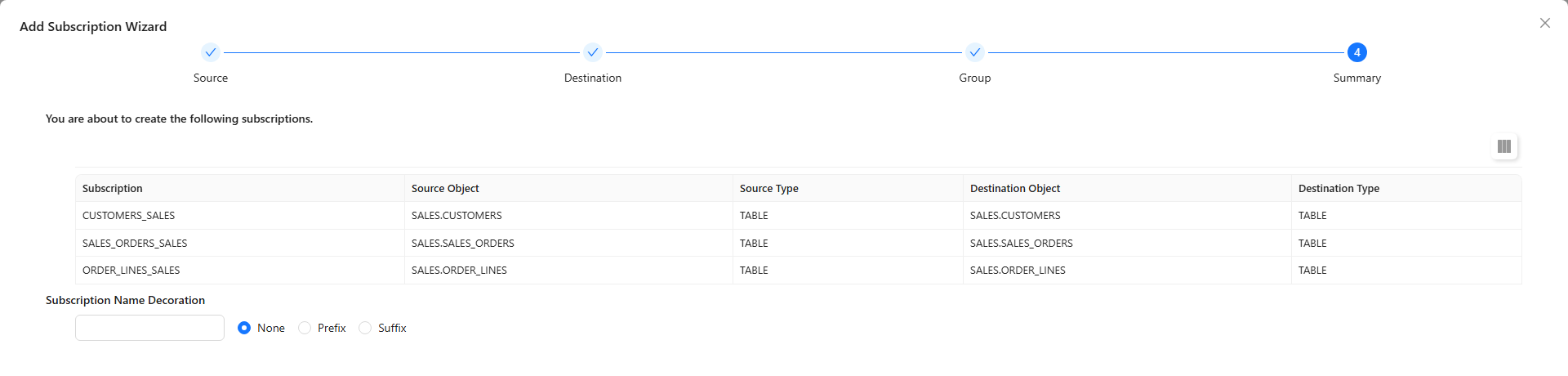
Names are built from the table and schema names, for example ORDERS_SALES; Subscription Name Decoration adds a
prefix or suffix to all of them. Each subscription gets every column, no criteria and no processing SQL; change them
afterwards on each subscription if needed.
When you start from a source
Started from a source's Insert, the wizard has two more steps.
Group
After Destination: the group the subscription belongs to.
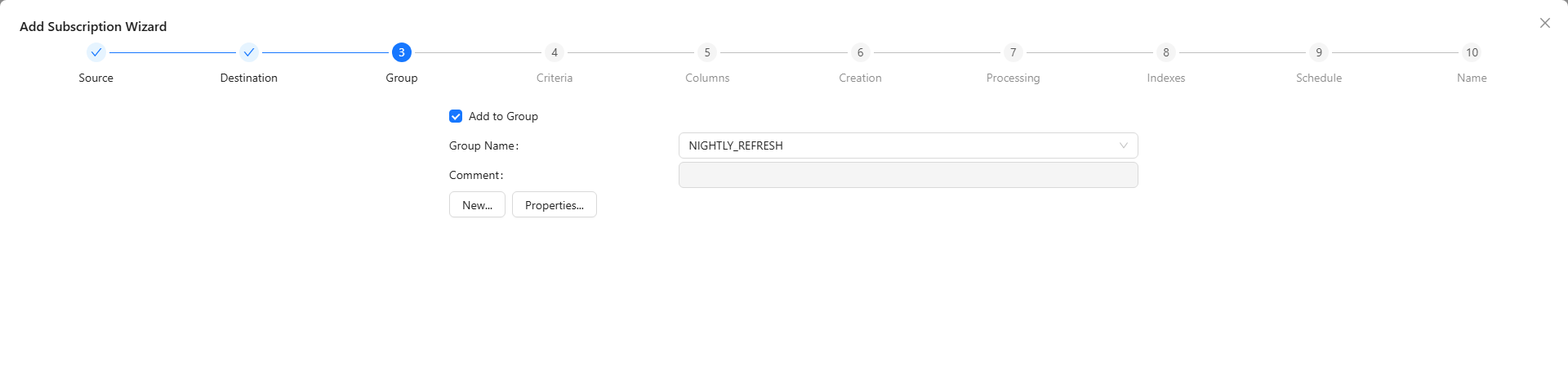
- Snapshot: optional. Add the subscription to a snapshot group to run it with related tables, in order, on the group's schedule. You can add it to more groups later, from the groups.
- Incremental: choose the group, with the same source and destination. If there's none, the wizard proposes a new one; New... and Properties... set it up (see Incremental groups), and it's saved with the subscription.
Schedule
Snapshot only, before Name: schedule the subscription to run on its own, one time or recurring (see Scheduling). Leave it off if the subscription runs with its group.
After you save
- Destination table. With the default Destination DDL Option, the destination table is created now; if a table with that name exists, you're warned before it's dropped and re-created.
- Warnings. You can save with warnings, or go back and fix them; errors must be fixed.
- Baseline of incremental subscriptions. Changes are applied only after the baseline:
- with the group's Automatic Snapshot on, the group runs it within a few minutes, even if the group has a schedule;
- otherwise, the group's next scheduled run does;
- with neither, you're asked whether to start it now.
- Tables that failed. When you create several subscriptions, Export Not Created saves the list of tables that failed: fix the problem and load the list with Import... on the Source step of a new wizard.
Next steps
- Manage subscriptions: run, copy, move, export or delete subscriptions.
- Subscription properties: change a subscription's settings.
- Derived columns and Scheduling