SQDR Control Center
The SQDR Control Center is the web application for Stelo Capture: you add and manage the Capture Agents and publish tables in it. Replication itself (sources, groups, subscriptions) is set up in SQDR's Data Replicator Manager.
Open the SQDR Control Center
The SQDR Control Center runs on the Stelo VM, in the SQDR Plus Jetty service.
| From | Address |
|---|---|
| The Stelo VM | http://127.0.0.1:8080/SQDRManager, or SQDR Control Center in the SQDR Plus (64-bit) Start menu folder |
| Another computer | http://<server>:8080/SQDRManager, or https://<server>:8443/SQDRManager for an encrypted connection |
| The Stelo Replicator container | http://<host>:8080/SQDRManager; the default Docker Compose setup doesn't publish the HTTPS port (see .env settings) |
If you chose other ports than 8080 and 8443 at installation, use those (see SQDR Plus Service Parameters), and allow them through the server's firewall. Over HTTPS, the self-signed certificate of the installation makes your browser warn you: accept the exception, or install a certificate from your certificate authority (see Your own certificate for the SQDR Control Center).
Sign in
- Windows: the Db2 user you entered in the installer, with its Windows password (see Install Db2 for LUW).
- Stelo Replicator container: user
SQDR, passwordSt4rQu3st0.
Any user that can connect to the control database SQDRC and read the Stelo Capture tables in it can sign in; when that user's password changes, sign in with the new one.
If sign-in fails
A message starting with "Login request failed." gives the reason:
| Message | What it means |
|---|---|
| "Unable to connect." followed by a Db2 error | The user or password is wrong, or Db2 or SQDRC isn't available. Check that the Db2 instance is running and SQDRC is active. |
| "Unable to connect. The System is in HADR Standby State." | SQDRC is the standby database of a Db2 HADR pair. Open the SQDR Control Center on the primary server. |
| "The response could not be deserialized." | Seen after an upgrade: refresh the page. |
Dashboard
The server's Dashboard tells you whether the Stelo VM and all its Capture Agents are healthy. For one agent, use its Summary tab and the Health Check. The figures are taken when you open the Dashboard and don't update until you click Refresh.
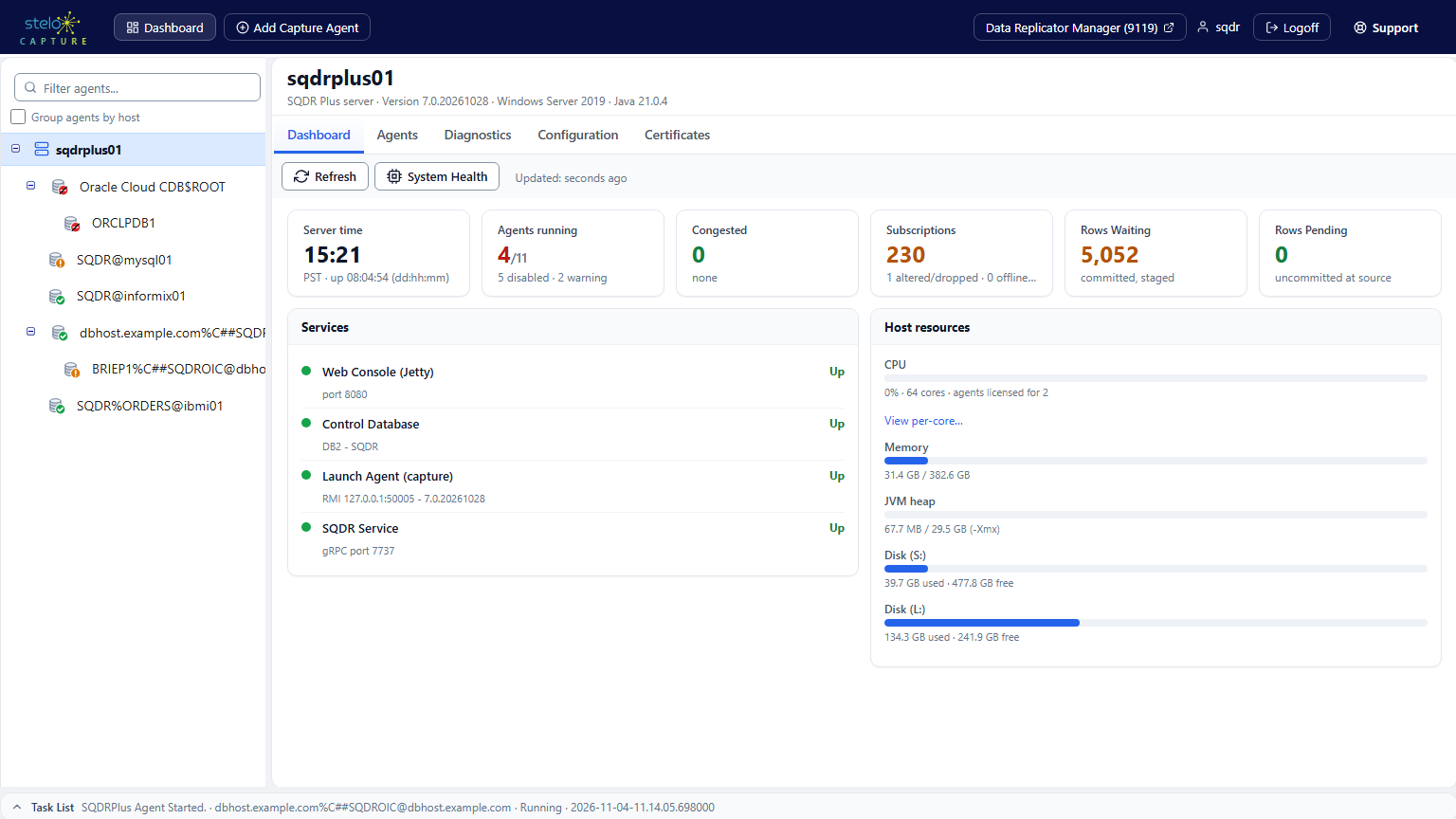
What needs attention
- Congested above 0: capture is falling behind the source. See When a Capture Agent falls behind.
- Subscriptions with altered/dropped (the source table changed or was dropped), offline, or agents unreachable: see the agent's Subscriptions tab.
- Rows Waiting that keeps growing: a subscriber isn't keeping up, or is paused.
- Rows Pending above 0 for long: a long-running transaction on the source. Its changes are staged but can't be applied until it commits.
- Server time is the time zone of the times in agent logs and statistics.
- SQDR Service shows Down when the Replicator Service runs on another server: that's expected.
Host resources
Meters turn amber at 75% and red at 90%. Disk covers the drives where Db2 keeps the Stelo Capture databases: if one fills, capture stops (see Reclaim table-space storage). CPU also shows the licensed cores when the core license limits the Capture Agents (see License).
System Health
System Health shows what each process on the server uses (Stelo Capture, the Replicator Service, Db2 and each Capture Agent), and on its DB2 tab the size of every table in the control and staging databases: use it to find what's filling the disk. The DB2 tab is computed when you open it, which can take a while on large staging databases.
Opened from an agent's Summary tab, it covers that agent only and adds Thread dump, which writes a thread dump of the agent to its log for Stelo Support.
Support tools
Some tabs are meant for use with Stelo Support and stay hidden until you choose Support › Show Support Tools: Query and Maintenance on the server node, and Apply on a Capture Agent. Operations there can disrupt replication or permanently delete data: use them only when Stelo Support asks you to.
Troubleshooting
- Cannot connect to SQDR Control Center
- Cannot sign in to SQDR Control Center after an upgrade
- SQDR Control Center behaves unexpectedly
- Control Center shortcut opens the wrong port