Incremental groups
An incremental group keeps a set of destination tables continuously in step with their source tables. It holds the incremental subscriptions (its members) for one source and one destination: the Replicator Service regularly asks the Capture Agent for the changes it captured and applies them to the destination. Every incremental subscription belongs to exactly one incremental group, so create the group first, then add its subscriptions.
To run, pause, replay or delete a group, and for how a group applies changes, see Manage incremental groups.
Before you start
You need a source configured for incremental replication and a destination.
Plan your groups: settings, pausing and error handling apply to all the members of a group. Put tables in separate groups when they need to be handled differently, for example:
- a different poll interval or apply method,
- a different destination,
- tables you want to pause, reset or re-baseline without affecting the others.
Create an incremental group
- Open Groups and click New I/R (New Incremental Group).
- On General, name the group (Step 1).
- On Advanced, choose the Source and the Destination (Step 2). You can't change them after the group is created.
- Review the other settings and click Save. The group starts polling for changes right away.
- Add its subscriptions: on the group's Subscriptions tab, click Insert Subscription (see Create subscriptions).
The New Group dialog, step by step
Only the name, the source and the destination are required; the other settings have defaults that suit most groups.
Step 1: General
Name the group, and decide how its baselines run.
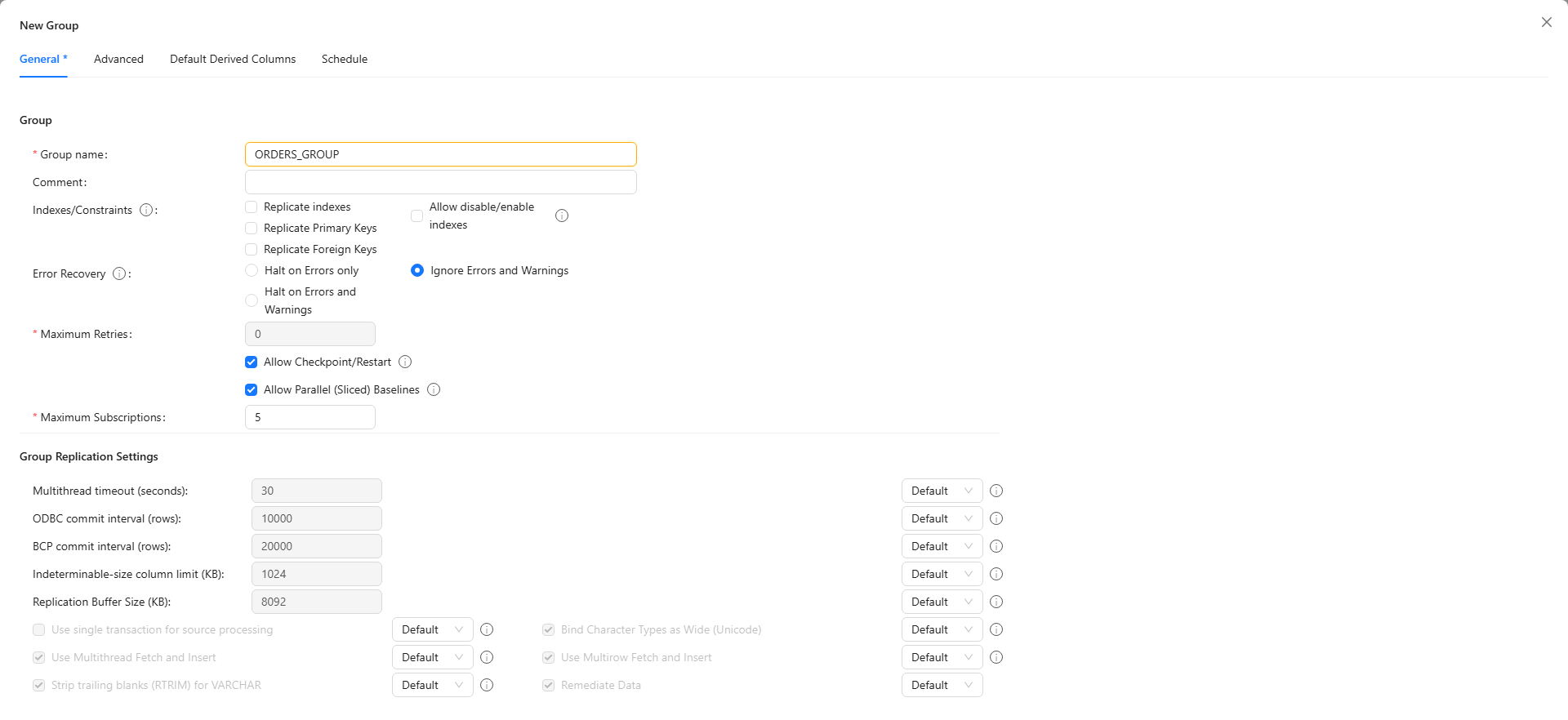
| Option | When to change it |
|---|---|
| Indexes/Constraints | To create the source's indexes, primary keys or foreign keys at the destination for every member, during its baseline. Allow disable/enable indexes (SQL Server and Oracle destinations) makes baselines faster. Force hidden column gives new members the source's row identifier as their key, for tables without a primary key or unique index (see The RRN or ROWID column). |
| Error Recovery | By default, a baseline of several members goes on when one fails. Choose a Halt option to stop at the first error (or warning). |
| Allow Checkpoint/Restart | On by default: a baseline that fails or is stopped resumes where it left off. See Checkpoint/Restart. |
| Allow Parallel (Sliced) Baselines | Members set up for a parallel baseline copy it in slices. |
| Maximum Subscriptions | How many members are baselined at once, and with Merge, how many tables are merged in parallel (default 5). Lower it to reduce the load on the source and destination. |
| Group Replication Settings | To change one of the Replicator Service's replication settings for this group only: choose Override next to it. See Replication defaults. |
Step 2: Advanced
Choose the source and destination, how often to poll, and how changes are applied.
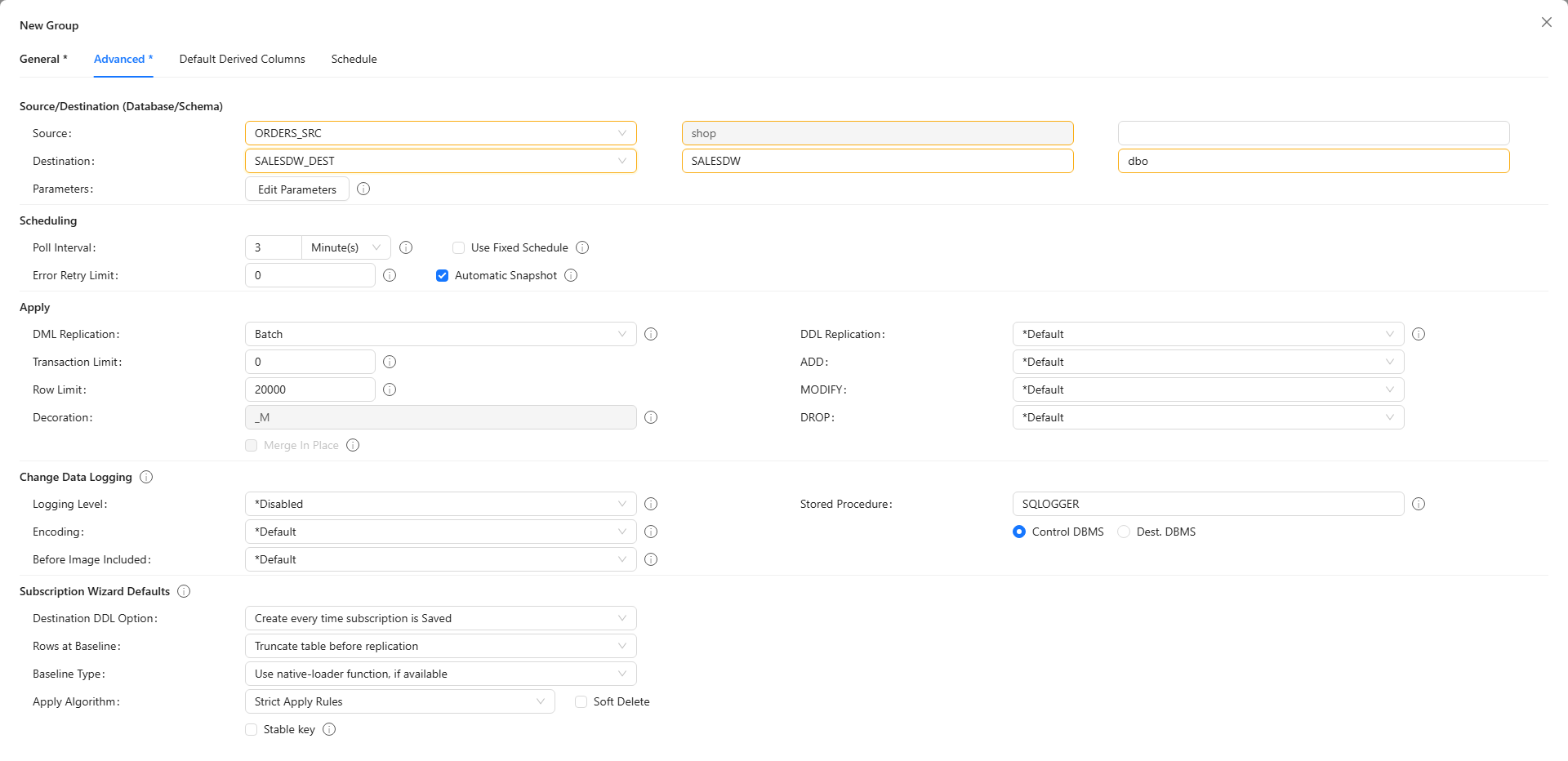
| Section | What to decide |
|---|---|
| Source/Destination | The source and the destination, for good: they can't be changed later. Only sources with a Capture Agent are listed. The database and schema beside them are where new members' tables are proposed. For a Java connector destination, Edit Parameters changes the group's copy of the destination's parameters (see Source/Destination). |
| Scheduling | Poll Interval (default 3 minutes): how often the group asks for changes when no change data notification arrives; with Use Fixed Schedule, it polls only at the interval. Error Retry Limit: after that many consecutive polling errors, the group pauses itself (0 keeps retrying). Automatic Snapshot (on by default): new members are baselined without you running the group. See Scheduling. |
| Apply | DML Replication: how changes are applied, Batch, Merge or Sequence (see Choosing the apply method). Transaction Limit and Row Limit: how much each destination transaction holds. DDL Replication: whether source ALTER changes reach the destination (see ALTER processing). See Apply. |
| Change Data Logging | To record the applied changes, or only the failed ones, through a stored procedure, for example for an audit trail. Not available with Merge. See Change Data Logging. |
| Subscription Wizard Defaults | The options every new member starts with: table creation, baseline type, apply algorithm (for example Soft Delete) and Stable key. Set them here once instead of in every subscription. See Subscription Wizard Defaults. |
Step 3: Default Derived Columns
Optional: columns to add to every new member, for example the time (@TS) and type (@TYPE) of each change.

Import... reuses a list exported from another group. See Derived columns and Default derived columns for a group.
Step 4: Schedule
Optional: baseline the members that need it at a set time, for example at night.

The schedule doesn't change how often the group polls for changes. Leave it off when Automatic Snapshot baselines new members. See Scheduling.
After you save
The group starts polling right away, with no members yet: add its subscriptions next. Later changes to the group's settings pause it; click Resume when it should apply changes again.
Next steps
- Add subscriptions from the group's Subscriptions tab, with Insert Subscription. They start with the group's source, destination and defaults. With Automatic Snapshot on, the group baselines them by itself; otherwise click Run.
- Manage incremental groups: run, pause, replay, reset or delete the group.
- Group properties: change a group's settings.
- Set up incremental replication (SQDR)