Licenses
SQDR needs license keys from Stelo. This page covers which keys you need, how to request and enter them on Windows and in the Docker container, the Licenses tabs of the Data Replicator Manager and the SQDR Control Center, the warning shown before a license expires, what the Replicator Service does without a valid license, how the CO license limits the Capture Agents, and moving a license to another server.
What you need
You need a DR license to run replications and, for incremental replication, a Stelo Capture core license (CO) for the number of processor cores the Capture Agents may use.
Stelo issues the keys for the server's Node ID, which you see after you install (on Windows, the server's disk ID; see Request and enter the license keys), so they arrive some time after the installation: request them as soon as SQDR is installed. The Docker container gets keys issued for the container (see License the container).
How SQDR is licensed
- By the replication server's cores, not by the sources or destinations: one installation can replicate from several sources to several destinations without more licenses, whatever the number of cores of the source and destination databases, so you pay for the capacity your transaction volume needs.
- The core count is the number of logical (virtual) processors allocated to the server or VM that runs Stelo Capture
and SQDR, whether hyper-threading is on or not. On Windows, Task Manager shows it as Logical processors on the
Performance › CPU page; in PowerShell, run
(Get-CimInstance Win32_Processor | Measure-Object NumberOfLogicalProcessors -Sum).Sum, which adds up the logical processors of all the processors. - Discounts are available for development or QA and for disaster recovery (DR) servers.
For prices, contact Stelo Sales.
Request and enter the license keys
Both parts of SQDR on the same server share one set of license keys. You enter them in the Data Replicator Manager, on the license screen or on the Replicator Service's Licenses tab; on Windows you can also use License Configuration, which is installed with SQDR. All of them change the same keys.
When the service has no valid DR license, the Data Replicator Manager shows the license screen in place of every page (see Without a valid DR license):
-
What to send Stelo support, with Copy (the Licenses tab shows it too):
- on Windows, the Host ID (the disk ID: the Licenses tab shows the same value as Disk ID, and License Configuration under Host ID when you add a key);
- in the Docker container, Docker container: Stelo Replicator container (see License the container).
Request the SQDR license keys from Stelo with it: after you buy the licenses, Stelo sends keys for the products and the number of licenses you're entitled to use. 2. The keys: paste the keys Stelo sends, one per line, and click Add keys. Each key is checked, and a key the service can't use is refused with the reason (see License keys).
As soon as a valid DR key is added, the service has a valid DR license, subscriptions and groups run again and the
pages come back; the service doesn't need a restart. Keys entered with License Configuration or
starlic-clientcfg are picked up within a minute. On Windows, close License Configuration after adding the keys:
while it's open, the service can't use a new counted key (see License keys). It uses the key within a minute
after License Configuration closes, or when the service restarts.
Then restart the SQDR Plus Launch Agent service, so that the Capture Agents use the core license (see How the core license is applied).
Keys you add while the service already has a valid DR license, for example a renewal, are used without a restart:
- a key added on the Licenses tab is used at once;
- a key added with License Configuration or
starlic-clientcfgis used when a license the service holds is refused, for example when the old key expires.
Each license the service checks out again this way is recorded in the service log (event ID 7177, see Changes are logged). A license key that is counted (Windows), such as the DR key, is used this way only while no other program has the license table open, for example License Configuration.
Enter the keys as soon as they arrive: until then the Replicator Service is locked, and each Capture Agent is limited to 2 cores (see How the core license is applied). For a new installation, ask Stelo for a temporary key if you want to set up the sources, destinations and groups before the permanent keys arrive.
When Stelo Capture runs on its own server (Stelo Apply on another server), the Stelo Capture core license key (CO) must be on the Stelo Capture server: the Launch Agent reads only the keys of the server it runs on, so a CO key on the Stelo Apply server leaves each Capture Agent limited to 2 cores. Add it on the SQDR Control Center's Licenses tab; the DR keys go on the Stelo Apply server.
The Licenses tab
Service Settings › Licenses in the Data Replicator Manager shows and changes the license keys of the computer
the Replicator Service runs on. On Windows these are the keys of License Configuration; in the
container, the license file /etc/starlicense.rc.
The service reads the keys when it starts, again when a key is added here, and when a license it holds is refused (for example, when its key expires): it then checks out the license from the keys configured at that moment. A key removed here stays in use until the service restarts.
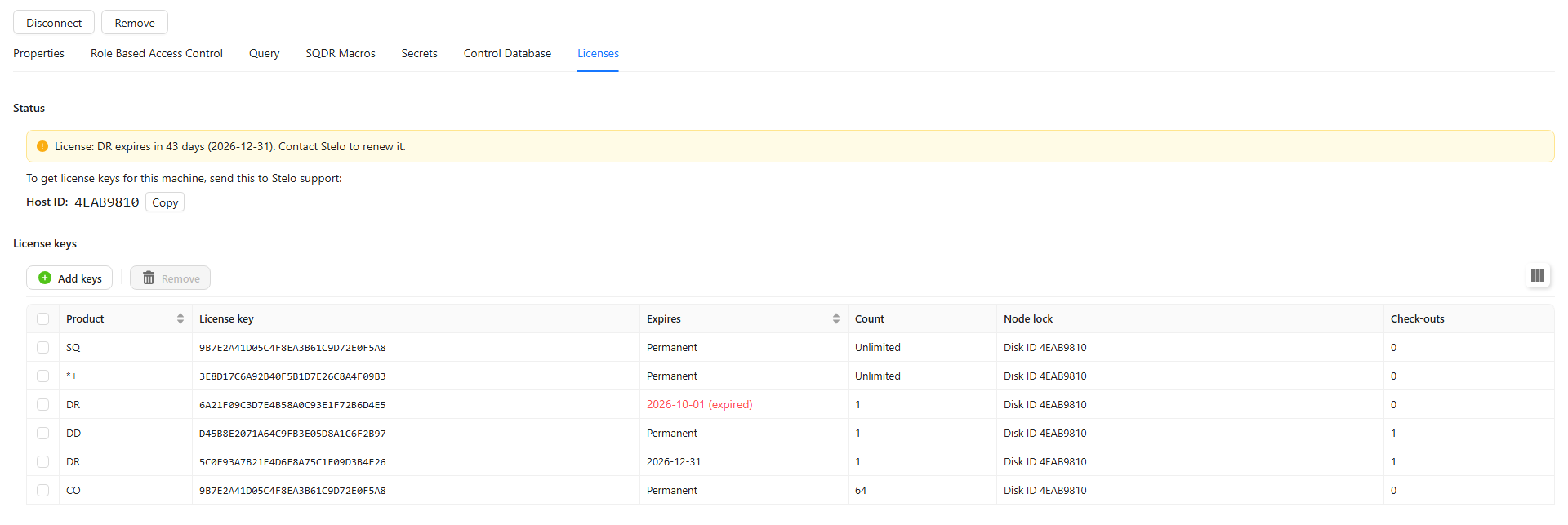
Status
| Message | What it means |
|---|---|
| "This service holds a valid DR license, and no license expires within 60 days." | Nothing to do. With the warning off (licenseWarningDays 0), only "This service holds a valid DR license." |
| "License: …" | A license expires within 60 days, or has expired. See Expiration warning. |
| "A license key was added since the service last read the keys. …" | A key was added outside this tab (License Configuration, starlic-clientcfg). Restart the service if you want it used now, or do nothing (recommended): the service uses it when the key it uses now expires. |
| "A license key was removed since the service last read the keys. …" | The service keeps using the removed key until it restarts. |
| "To get license keys for this machine, send this to Stelo support: Host ID …" | What to send Stelo support when you request keys for this computer: the Host ID (on Windows the disk ID, on Linux the host ID), or in the Docker container Stelo Replicator container. Copy puts it on the clipboard. The Add license keys dialog lists everything a key can be locked to on this computer, or in the container says the keys must be issued for the container. |
License keys
| Column | What it shows |
|---|---|
| Product | The product the key licenses, for example DR (replication) or CO (the cores the Capture Agents may use). |
| License key | The key itself. |
| Expires | The date the key expires, Permanent, or the date followed by "(expired)". |
| Count | How many licenses the key holds, or Unlimited. |
| Node lock | What the key is locked to: Disk ID, Host ID or IP address, and the value. Not this machine marks a key that isn't valid on this computer, and Not usable here a key for this computer that the service can't use (a counted key on Linux, see below); hover over either to see why. License server key marks a key meant for a license server. |
| Check-outs | Windows only: how many of the key's licenses are in use. |
| Button | What it does |
|---|---|
| Add keys | Opens Add license keys: paste the keys, one per line, and click Add. Each key is checked first (see below). The dialog shows what a key must be locked to on this computer. |
| Remove | After confirmation, removes the selected keys. The service keeps using the keys it loaded until it restarts. |
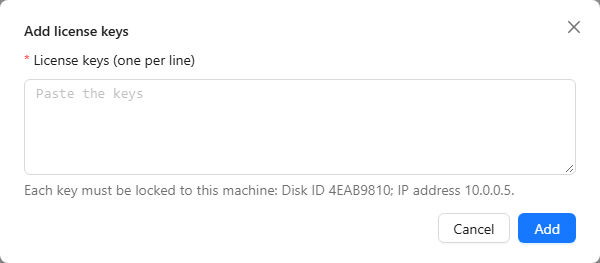
Add refuses a key, with the reason, when:
- it isn't a license key;
- it's a license server key ("This is a license server key. Only client license keys are added here.");
- it's already configured;
- it has expired ("This license key expired on …");
- it's locked to another computer, for example "This license key is locked to the disk ID …; the disk ID of this machine is …", or "This license key is locked to the IP address …, which is not an address of this machine.";
- on Linux, it's counted ("This license key is counted (2): on Linux the license library checks out a counted key only from a license server on this machine."). Keys for Linux and the container are uncounted (Count shows Unlimited); the Stelo Capture core key (CO) is the exception, its count is the number of cores.
Like License Configuration, the tab refuses a key that isn't valid, a license server key, a key that's already configured and a key locked to another computer. Unlike it, the tab also refuses an expired key: the service couldn't use it.
Changes are logged
Each key added or removed through the Replicator Service is recorded in the service log, with the user and the computer the request came from; a key is shown by its first 8 characters:
- event ID 7174: "License: The DR license key 1F19041A... was added by admin from 10.1.2.3.";
- event ID 7175: a key removed;
- event ID 7177: a license the service checked out again from the keys configured now, without a restart, and why, for example "License: The DR license the service checked out is no longer valid ([StarLicense] License has expired). The service checked out the DR license again from the license keys configured now, without a restart." or, for the license of an incremental group, "License: The W+ license for SOURCE to DEST is no longer valid ([StarLicense] Invalid product ID). The service checked out the W+ license again …". After a key is added on the Licenses tab, the cause is the key added.
A key that is refused isn't logged.
Who may use it
With Role Based Access Control on, every user can see the tab and the expiration warning. Adding and removing keys need the admins role level (90) by default; snoozing the warning needs ops (20).
Expiration warning
When a license expires within 60 days, or has expired, the Data Replicator Manager shows License expiring in the main menu, on every page for that service. Hover over it to see which license, for example "License: DR expires in 45 days (2026-12-31). Contact Stelo to renew it."; click it to open the Licenses tab, which shows the same warning.

- Which licenses: for each product, the latest expiry among its keys that are valid on this computer. A product with a permanent key, or with a newer key that expires later, isn't listed.
- How early: 60 days by default. Stelo Support can change it with the service property licenseWarningDays, for example to 3 days; 0 turns the warning off. A trial key (often 15 to 30 days) is inside the 60 days from the start: the warning then says when the trial ends.
- The Data Replicator Manager checks again every 10 minutes.
To end the warning, request new keys from Stelo and add them (see Request and enter the license keys); the service doesn't need a restart. You can then remove the old keys. If a license expires while the service runs and no valid key is configured, each subscription, group and request that checks it fails with "License Error" (event ID 7171) until a valid key is entered; the service then checks out the license from it (event ID 7177). A service that starts without a valid DR license is locked (see Without a valid DR license).
Without a valid DR license
When the Replicator Service starts without a valid DR license (none was entered, it expired, or it's for another computer), it is locked: it runs no subscriptions or groups, and serves nothing but its license. Incremental groups and schedules wait; they start when the license is valid. The service still runs, so that the license can be entered from the Data Replicator Manager:
- The Data Replicator Manager connects, shows No DR license in red in the main menu, and shows the license screen in place of every page: the reason, what to send Stelo for keys, the box for the keys (see Request and enter the license keys). The configuration can't be viewed or changed until a valid DR license is entered.
- The classic Data Replicator Manager doesn't connect: it shows the reason, for example "Replication Service Error: The DR license expired on 2026-10-01." Enter the key with License Configuration.
- Every other request, for example from the PowerShell cmdlets, is refused with the reason, followed by "The service is locked until a valid DR license is entered."
Only the start locks the service. A license check that fails while the service runs (for example, a license that expires) is first tried with the keys configured now (see Changes are logged, event ID 7177); when they have no valid key for it either, it fails only that run or request, with event ID 7171. The keys are tried again at most once a minute.
The service records it in the service log, as an error (event ID 7170):
License Error: reason The service started without a valid DR license. Subscriptions and groups cannot run until a valid DR license is entered.
| Reason | When |
|---|---|
| "The DR license expired on 2026-10-01." | The DR key of this computer expired (with several, the latest date). |
| "The DR license is for another machine (disk ID 0BADF00D; this machine's disk ID is 4EAB9810)." | The DR key is locked to another computer; in the container, for example "(IP address 172.18.0.2)". |
| "The DR license key is counted, which a service on Linux can use only from a license server on this machine." | On Linux, a counted DR key (see License keys). |
| "This service has no DR license." | No DR key is configured. |
| "This service has no valid DR license: Maximum number of licenses has been reached." | The license library's answer, when a DR key of this computer looks usable. |
To resolve it, add a valid DR key on the license screen: the service checks the license again at once. A key entered
with License Configuration or starlic-clientcfg is picked up within a minute: the service checks the license
once a minute while it's locked (on Windows, a counted key once License Configuration is closed). When it has a
valid DR license, it records "License: The service has a valid DR license now. Subscriptions and groups can run."
(event ID 7173) in the service log, and everything works again without a restart: the incremental groups and the
schedules start. The license screen goes away within 30 seconds, or at once when the key is added on it.
SQDR Control Center
The SQDR Control Center has a Licenses tab on the server node (after Certificates) for the Stelo Capture core license (CO), the only license Stelo Capture reads: the Launch Agent reads the CO keys of its own server when it starts a Capture Agent (see How the core license is applied).
- The core license: for example "Core license (CO): 8 cores. Each Capture Agent runs on 8 of the 16 processors of this machine.", or that the Capture Agents use all the processors. Without a valid CO key, a warning says that each Capture Agent runs on 2 processors and to contact Stelo for a CO license key. A change applies when a Capture Agent starts.
- What to send Stelo support: "To get a CO license key for this machine, send this to Stelo support: Host ID 4EAB9810", with Copy (on Linux the host ID; in the Docker container, Stelo Replicator container). Send it with the number of cores when you request a CO key. When Stelo Capture runs on its own server, this is that server's ID, not the Stelo Apply server's.
- The CO keys, with the cores each covers and its node lock. The server's other keys (SQDR's) aren't shown.
- Add Key adds a CO key, with the same checks as the Licenses tab; a key for another product is refused: add it in the Data Replicator Manager. Remove Key removes the selected CO key, after confirmation.
- CO keys don't expire: the SQDR Control Center shows no expiration warning.
- Each CO key added or removed is recorded in the SQDR Control Center's log ("License: The CO license key AEA46F7E... was added by sqdr.", the key by its first 8 characters) and in its Task List.
- Any user signed in to the SQDR Control Center can change the CO keys.
How the core license is applied
The Launch Agent applies the core license as follows.
- It reads the core license when it starts its first Capture Agent, and runs each Capture Agent's Java process on that many processors of the server (processor affinity).
- Without a core license, each Capture Agent uses 2 processors.
- If the license covers all the server's processors, or more than 32, it doesn't limit the Capture Agents.
To check the licensed count, open the SQDR Control Center's Licenses tab, or click View per-core… under Host resources on its Dashboard: it shows the licensed cores, or "no core key (agents default to 2)". The Launch Agent log also lists the installed licenses when it starts the first Capture Agent.
Size the server for the cores your license covers: see Server sizing.
License the container
The Stelo Replicator container needs license keys issued for the container. Keys for the container's address on the Docker Compose network, or for the host, can stop working or not work at all: the container's own address can change when the container is recreated, and the host's address isn't an address of the container. Keys issued for the container keep working when it's recreated.
- Ask Stelo Support for the license keys for the Stelo Replicator container.
- Open a shell in the container:
docker exec -ti stelo-full bash. -
Add each key:
cd /opt/stelo/starsql64/bin
./starlic-clientcfg client-key-add <license-key>
The first time, the container waits for the license file (/etc/starlicense.rc) before it starts the services, so
the first keys are added in the shell. It then moves the file to the sq-config volume
(/var/sqdr/starlicense.rc, see Volumes), makes /etc/starlicense.rc a link to it, and starts
the services.
Once the services run, you can also add and remove keys on the license screen or the Licenses tab,
for example to renew a license. Keys you add or remove later, on the Licenses tab, in the SQDR Control Center or
with starlic-clientcfg, are kept when the container restarts or is recreated.
Move or transfer a license
Licenses are tied to the computer (on Windows, its Node ID), so moving SQDR, or one of its parts, to another server may mean transferring them. The container's keys keep working on another host, but transferring a license to another host still needs Stelo's approval.
You can transfer a license to another computer, or to another user or organization, if you have a current maintenance contract and Stelo approves it in writing. Open a request with Stelo Support that names who or what holds the license now and who or what should hold it: for another computer, give the Node ID of the current computer and of the new one. See also StarLicense for Windows Quick Start Guide (Help Center).
Upgrades. With an annual maintenance contract, you receive upgrades and error corrections for the products you license at no extra charge for as long as the maintenance is continuous (see Support hours and policies). Ask Stelo Support for the upgrade.
Keep a copy of your license keys with your backups (see Back up the configuration).