Sources
A source is a database the Replicator Service reads from: how to connect to it, the user to read with, and the defaults for new subscriptions. Every subscription belongs to one source. You create a source with the New Source wizard. To change, pause, replay or delete one, see Manage sources.
Before you start
Prepare the source database and, for incremental replication, its Capture Agent: see its page under Databases.
| Snapshot source | Incremental source | |
|---|---|---|
| What it supports | Snapshot subscriptions: a full copy at each run | Snapshot subscriptions, and incremental subscriptions and groups: a baseline, then the captured changes |
| Needs | An ODBC connection to the database | The same, plus a Capture Agent for the database, chosen on the source |
| Databases | Any database the Replicator Service can reach through a supported ODBC driver | Db2 for i, Db2 for LUW, SQL Server, Oracle, MySQL (and MariaDB), Informix and PostgreSQL |
Define one source per database. Define the same database more than once only when sets of subscriptions need different credentials, connection limits or default schemas.
Create a source
- In the menu bar, click Sources, then New.
- Name the source (Step 1).
- Choose the ODBC driver and enter the connection string (Step 2).
- Enter the user to read with, and click Verify (Step 3).
- Click Save. The Replicator Service connects to the database and fills in the other settings, including the Capture Agent if the database has one (see After you save). To review those settings first, tick Advanced on step 3 and go through steps 4 to 6.
The New Source wizard, step by step
Step 1: Name
Name the source and choose its type of database.
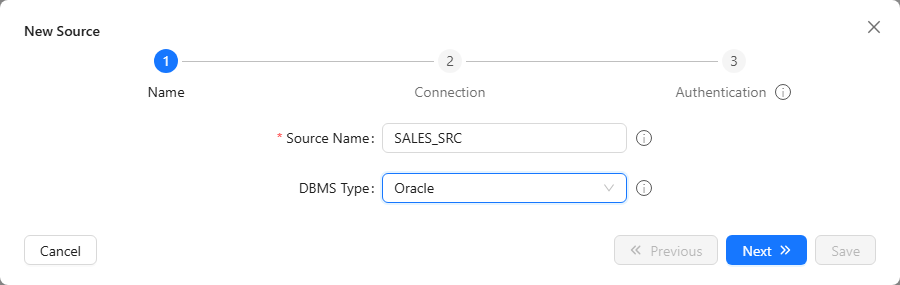
The name can have up to 32 characters, and you can change it later. DBMS Type narrows the next step's driver list to the drivers with a connection template for that database. If your database isn't listed, leave Other: the Replicator Service detects the type when you save.
Step 2: Connection
Tell the Replicator Service how to reach the database.
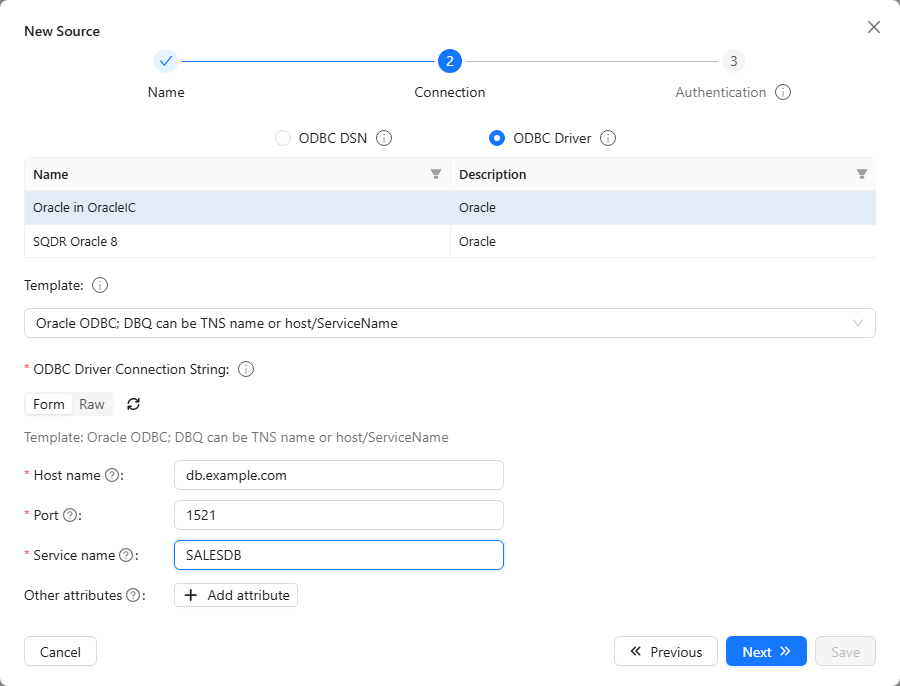
- ODBC Driver or ODBC DSN. With ODBC Driver, you enter the connection string here and there's no data source to maintain on the Stelo VM. Choose ODBC DSN only to use a data source already defined in the ODBC Data Source Administrator. You can't switch between them later.
- Template. Pick the template for your setup to get one field per setting, such as host, port and service name. Other attributes adds settings the template doesn't have.
- Passwords and keys in the connection string can be stored secrets, written
$$name$$, so that they don't appear in the string.
What to enter for your database, with examples: Connection strings by database.
Step 3: Authentication
Enter the database user the Replicator Service reads with.
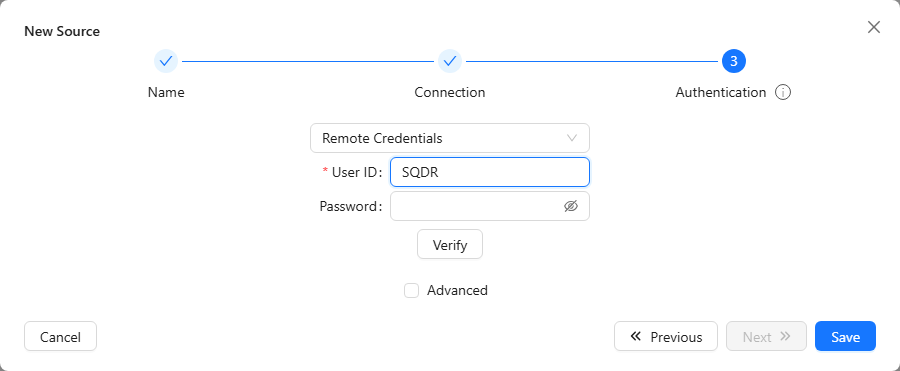
The user needs permission to read the replicated tables and to run the SQL your subscriptions run on the source. Its password is stored encrypted. Instead of a user and password, choose Use Integrated Security to connect as the account the Replicator Service runs under (SQL Server with Windows authentication), or Connection String (driver-specific) when the connection string holds the login, such as a key or token (see Authentication).
Click Verify to test the connection before you save (see Testing the connection). Tick Advanced to review the connection limits, the defaults and the Capture Agent before saving: the wizard then connects to the database to read them.
Step 4: Options (with Advanced)
Limit the connections the Replicator Service opens to the source.
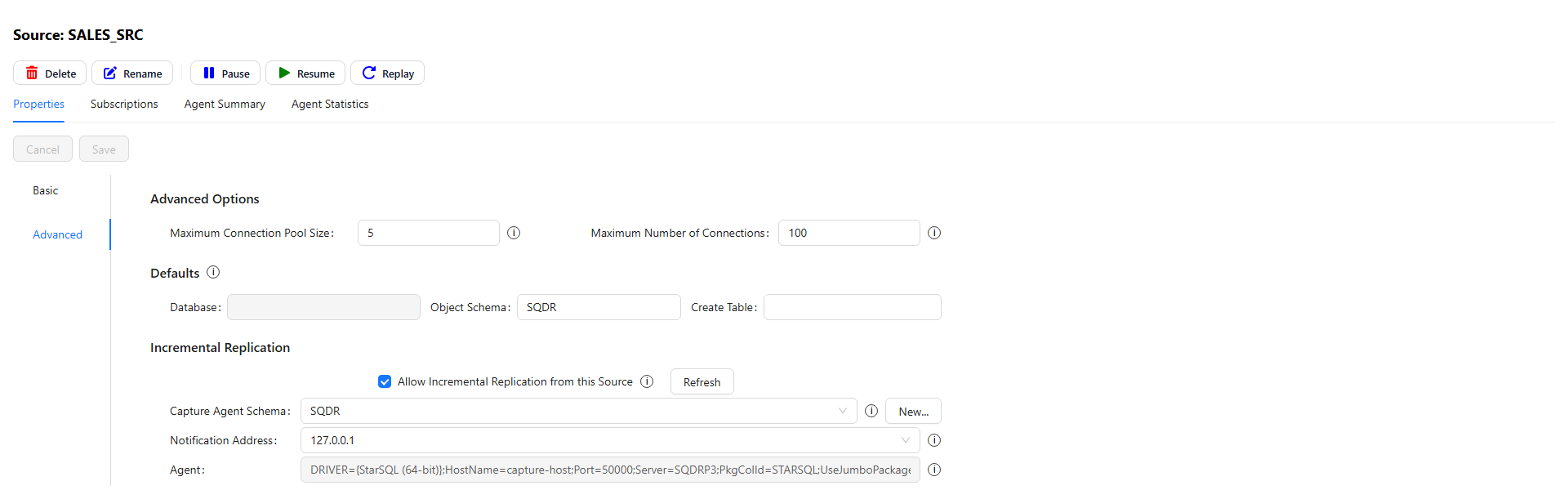
Steps 4 to 6 have the same settings as the source's Advanced tab:
| Option | When to change it |
|---|---|
| Maximum Connection Pool Size (default 5) | Raise it when many replications from this source start in quick succession, to reuse open connections. |
| Maximum Number of Connections (default 100) | Lower it to limit the sessions on the source database. |
| AS/400 Multi Member File Access | Db2 for i: tick it to replicate a specific member of a multi-member file. See Multimember files. |
Step 5: Default (with Advanced)
Choose where the Subscription Wizard looks for tables.
Set Object Schema (and Database, if the database has catalogs) to the schema that holds the tables you replicate: the Subscription Wizard opens there, and new incremental groups use it as their source schema. Create Table isn't used for sources. See Defaults.
Step 6: Incremental Replication (with Advanced)
Make the source incremental. This step appears only when the database has a Capture Agent.
| Option | When to change it |
|---|---|
| Allow Incremental Replication from this Source | Tick it to create incremental subscriptions and groups from this source. |
| Capture Agent Schema | Several Capture Agents monitor this database: choose the one that captures your tables. |
| Notification Address | Change it if the Capture Agent must reach the Replicator Service at another address. With notifications, groups apply changes as soon as they're committed instead of at their next poll; Disable relies on polling only. See Change data notifications. |
After you save
Without Advanced, the Replicator Service connects to the database and sets:
| Setting | Value |
|---|---|
| DBMS Type | The type the database reports, if you left Other. |
| Database, Object Schema (defaults) | The database the driver reports, if the database uses catalogs. The schema is dbo for SQL Server, otherwise the user ID (without a domain or @... suffix) if the database uses schemas. |
| Connection limits | 5 and 100. |
| Capture Agent Schema | The first Capture Agent found in the database, if any: the source is then incremental. You're shown the schema and can go back to choose another one. |
| Notification Address | An IP address of the Replicator Service's computer, when a Capture Agent was found. |
If it can't connect, or can't reach the Capture Agent, nothing is saved and the error is shown. If the database reports a different type from the one you chose, the reported type is saved and you're told.
Next steps
- Create a destination, then an incremental group or a snapshot group, then its subscriptions.
- Manage sources: change, rename, pause, replay or delete a source.
- Source properties: change a source's settings.
- Preparing the source database for incremental replication: Db2 for i, Db2 LUW, SQL Server, Oracle, MySQL and MariaDB, Informix, PostgreSQL
- Connecting SQDR to a Db2 source: bind the StarSQL packages